When Windows is upgraded to a newer version, the operating system may keep a copy of the previous installation on your computer. This backup is usually stored in a folder called Windows Old. It can be helpful when you want to recover an earlier Windows installation, but it can also use a considerable amount of storage on your main drive.
If you have recently upgraded Windows and noticed that your C: drive has less free space, How to Delete Windows Old Folder is something worth learning. Windows includes built-in cleanup methods that can remove these old installation files without requiring you to manually delete protected folders. Before starting, make sure your current Windows installation is working properly.
Why Remove the Windows Old Folder?
One of the biggest reasons to remove Windows Old is to recover disk space. Previous Windows installation files can occupy several gigabytes, which can be significant if your computer has a relatively small SSD. If you are looking for How to Delete Windows Old Folder, freeing up this unused space is one of the main reasons to remove these files.
Freeing this space can give you more room for applications, documents, updates, and other files. It can also help when Windows displays warnings that your system drive is running low on storage.
However, deleting the folder should not be the first thing you do immediately after an upgrade. If you are still deciding whether to keep the new Windows version, it is better to leave the previous installation available .
The easiest way to remove previous Windows installation files is to use the built-in Disk Cleanup utility.
Open Disk Cleanup
Press the Windows key and type Disk Cleanup into the search box. From the search results, choose the application.
Windows may ask you which drive you want to clean. Select your main Windows drive, usually C:, and click OK.
Start a System File Scan
After Disk Cleanup finishes its first scan, select Clean up system files. Windows will perform another scan and display additional categories that can be considered for removal.
Select the Windows installation drive again if Windows asks you to choose one.
Select Previous Windows Installation
Look through the list of files and find Previous Windows installation(s). This is the category associated with the old Windows installation.
Select it after confirming that you do not need to return to your previous Windows version. You can review the other cleanup categories as well, but avoid selecting anything you are unsure about.
Confirm the Removal
Click OK and then confirm the cleanup when Windows asks for permission. The removal process may take some time, particularly if the old installation contains a large amount of data.
After the cleanup has completed, the storage previously used by the old installation should become available again.
Delete Previous Installation Files From Windows Settings
Windows 11 also gives you a storage management option through the Settings app. This can be a convenient alternative if you prefer not to use Disk Cleanup.
Open Temporary Files
Open Settings → System → Storage. Then select Temporary files.
Allow Windows to analyze the available temporary and system files. Find Previous Windows installation(s) in the results and select it.
Remove the Previous Installation
After checking that you no longer need the previous installation, click Remove files. Windows will process the selected files and reclaim the associated storage space.
What Should You Check Before Removing It?
Before following How to Delete Windows Old Folder, take a few minutes to make sure your current Windows installation is stable.
Check your important applications, files, drivers, and Windows settings. If everything is working as expected, you can consider removing the previous installation.
You should also remember that removing Windows Old can affect your ability to return to the previous Windows installation. Therefore, do not remove it if you are still troubleshooting an upgrade or considering a rollback.
It is also a good idea to keep separate backups of important personal files. The Windows Old folder should not be considered a replacement for a proper backup.
Is Manual Deletion Safe?
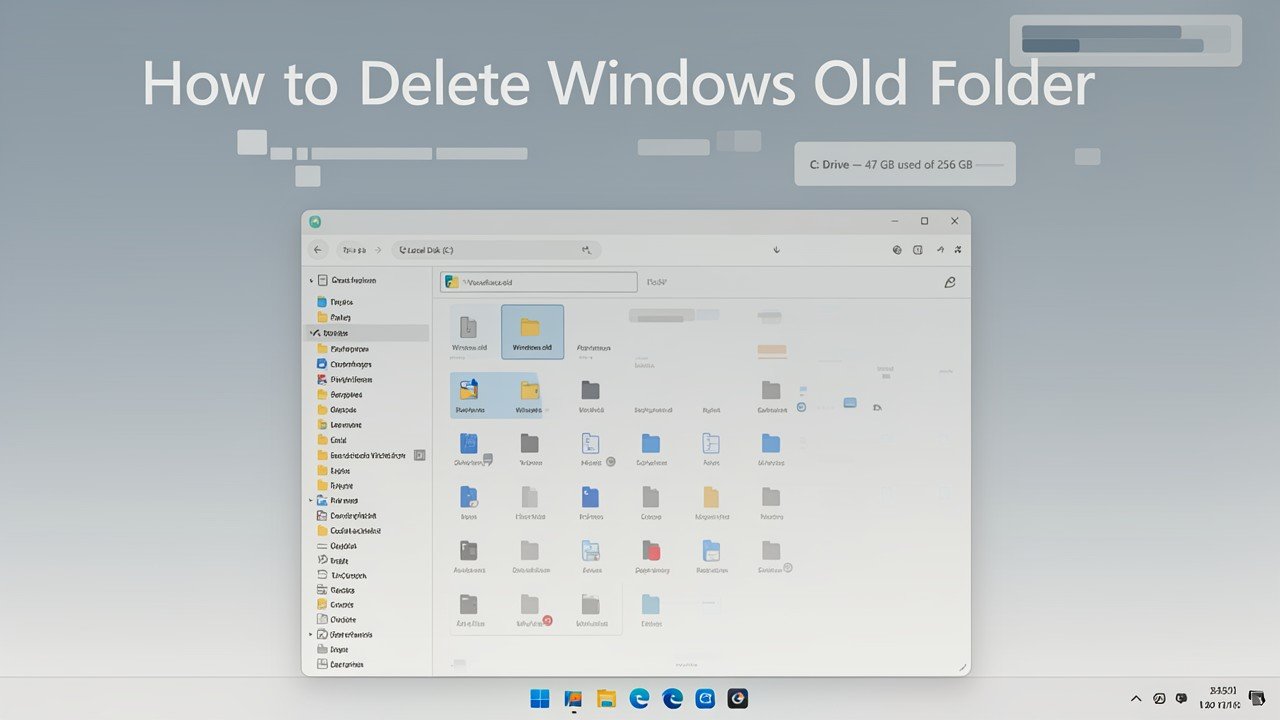
You might find the Windows Old folder by opening File Explorer → This PC → Local Disk (C:). Although it may look like an ordinary folder, Windows can protect some of the files stored inside it.
Trying to remove individual files manually can result in permission errors or leave some data behind. Instead of forcing the deletion, Windows’ built-in cleanup tools are a more practical option.
Disk Cleanup and Storage settings can identify the previous installation files and handle their removal through the normal Windows cleanup process.
Final Thoughts
Windows Old can be useful after upgrading your operating system, especially if you need to return to the previous Windows installation. Once your new system has been tested and you are confident that you no longer need those files, removing them can recover a significant amount of storage. Using Windows’ built-in tools makes How to Delete Windows Old Folder simple and avoids the problems that can come with manually deleting protected system files.