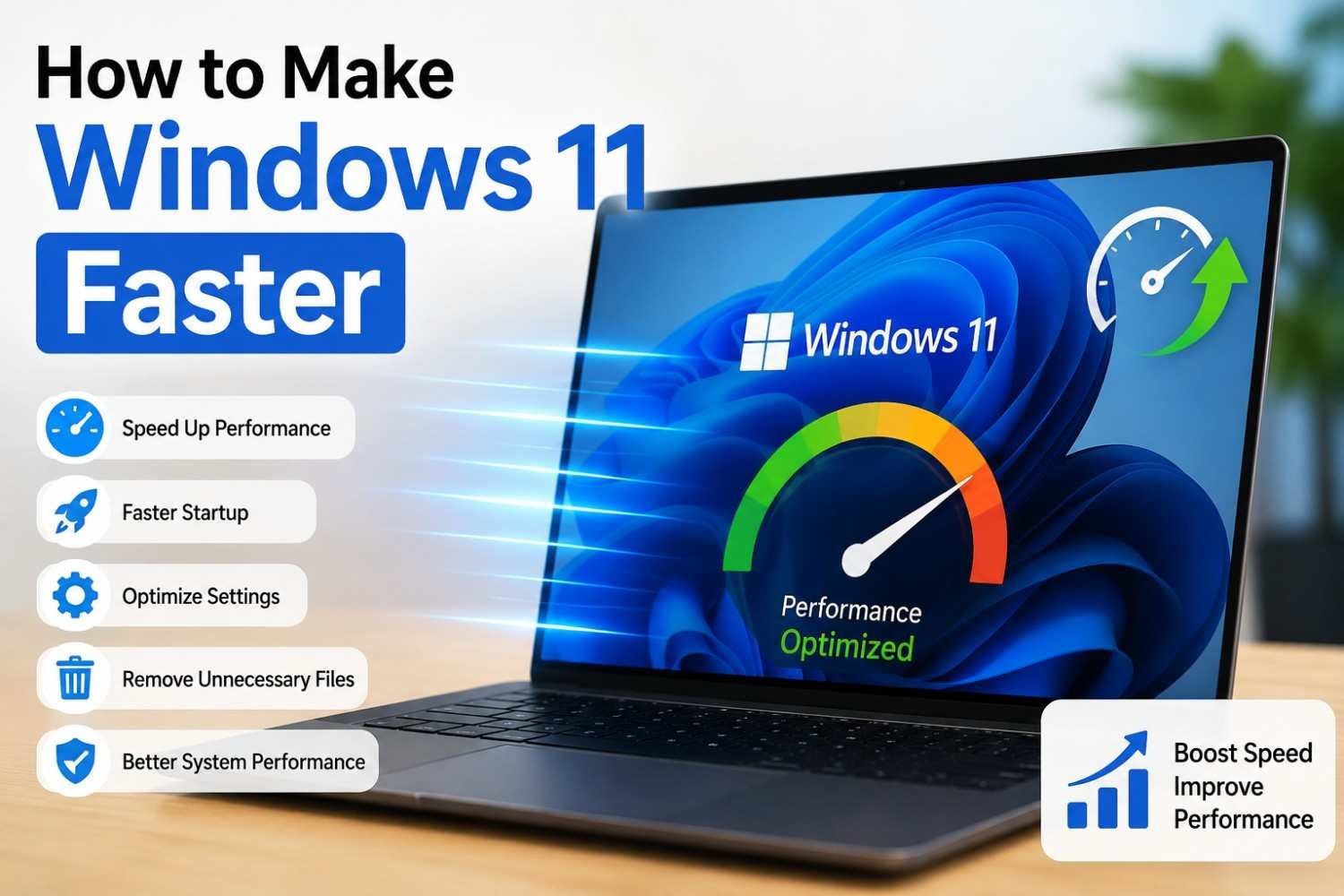
Windows 11 is designed to provide a smooth and modern experience, but your computer may become slower over time. Too many startup programs, unnecessary applications, temporary files, and outdated drivers can affect overall performance. Fortunately, you can make several simple changes without installing complicated software.
Before making major changes, it is a good idea to understand what is causing the slowdown. A computer may feel slow because of limited storage, too many background applications, insufficient memory, or programs using system resources. Identifying the problem first can help you choose the right solution.
1. Disable Unnecessary Startup Apps
Some applications automatically launch when you sign in to Windows. While this can be convenient, having too many startup programs can increase boot time and consume system resources.
Open Settings > Apps > Startup and review the available applications. Turn off startup access for programs that you do not need immediately after starting your computer.
You can also use Task Manager to check which startup applications have a higher impact on startup performance. This is an important step when learning How to Make Windows 11 Faster, as disabling unnecessary startup programs can help improve startup performance.
2. Remove Unused Applications
Installed applications can take up storage space and may sometimes run background processes. Removing programs you no longer use can help keep your system organized.
Go to Settings > Apps > Installed apps and review the list. Uninstall applications that you recognize and no longer need.
Be careful with unfamiliar programs and Windows components. If you are not sure what an application does, research it before removing it.
- Free Up Storage SpaceLow storage can affect the overall experience of a Windows computer. Temporary files, old downloads, cached data, and unused applications can gradually consume available space.
Windows 11 includes built-in storage management tools that can help you find unnecessary files. Go to Settings > System > Storage and review the categories using the most space.
You can also enable Storage Sense, which can automatically remove certain temporary files and help maintain available storage.
4. Keep Windows and Drivers Updated
Running an outdated version of Windows or old device drivers can sometimes cause performance or compatibility problems.
Open Settings > Windows Update and check for available updates. You should also make sure important device drivers are up to date, especially graphics and chipset drivers.
Only download drivers from trusted sources, such as your computer manufacturer or the official hardware manufacturer’s website.
5. Reduce Unnecessary Background Activity
Some applications continue running in the background even when you are not actively using them. These processes can consume memory, CPU resources, or network bandwidth.
Review the applications installed on your PC and remove or restrict programs that you do not need. You can also use Task Manager to identify applications that are consuming unusually high amounts of CPU or memory. This can be a useful step when learning, especially if background applications are using too many system searching Windows for Adjust How to Make Windows 11 Faster the appearance and performance of Windows.
From there, you can choose settings that prioritize performance instead of visual effects. You do not necessarily need to disable everything; select the options that make sense for your cresources.
If an unfamiliar process is using significant resources, investigate it before ending or disabling it.
.
6. Adjust Visual Effects
7. Restart Your Computer Regularly
A simple restart can sometimes resolve temporary performance issues. Applications and background processes may accumulate during long sessions, and restarting gives Windows a fresh start.
If your computer has been running for a long time, restart it and check whether performance improves afterward. Regularly restarting your PC is another simple way to support How to Make Windows 11 Faster.
8. Check for Malware
Unwanted or malicious software can consume system resources and cause unusual slowdowns. Windows Security provides built-in protection that can scan your computer for potential threats.
Open Windows Security and run a scan. Avoid downloading unknown optimization tools or unofficial scripts that promise dramatic performance improvements.
Final Thoughts
Improving Windows performance does not always require expensive hardware or third-party optimization software. Simple steps such as managing startup applications, removing unused programs, freeing storage space, updating Windows, and reducing unnecessary background activity can make a noticeable difference.
The best approach is to make changes gradually and monitor your computer after each adjustment. Avoid aggressive system modifications unless you fully understand what they change. These simple maintenance steps can help you learn How to Make Windows 11 Faster while keeping your system stable and responsive. With regular maintenance and sensible settings, you can keep your Windows 11 PC running smoothly for longer.