Windows updates are designed to improve security, fix bugs, and add new features. However, sometimes a new update can cause unexpected problems, such as driver issues, application errors, crashes, or slower performance. When this happens, returning to a previous update or Windows version can help restore your PC to a more stable state.
If a recent update is causing problems, Windows provides built-in recovery options that allow you to remove certain updates or return to a previous version. Before making any changes, save your important files and close your running applications.
What Does Rolling Back a Windows Update Mean?
Rolling back an update means returning your computer to an earlier state before a specific update or Windows version was installed. This can be useful when a recent update creates compatibility, performance, or hardware problems.
If you are wondering How to Roll Back a Windows Update, the process usually involves removing a recent update or returning to a previous Windows version. The available option depends on your Windows version and when the update was installed.
Before You Roll Back an Update
Before removing an update, take a few simple precautions. Back up important documents, photos, and other files to an external drive or cloud storage if possible.
Also, think about when the problem started. If your Wi-Fi, sound, applications, or other hardware stopped working immediately after an update, the update could be related to the issue.
How to Remove a Recent Windows Update
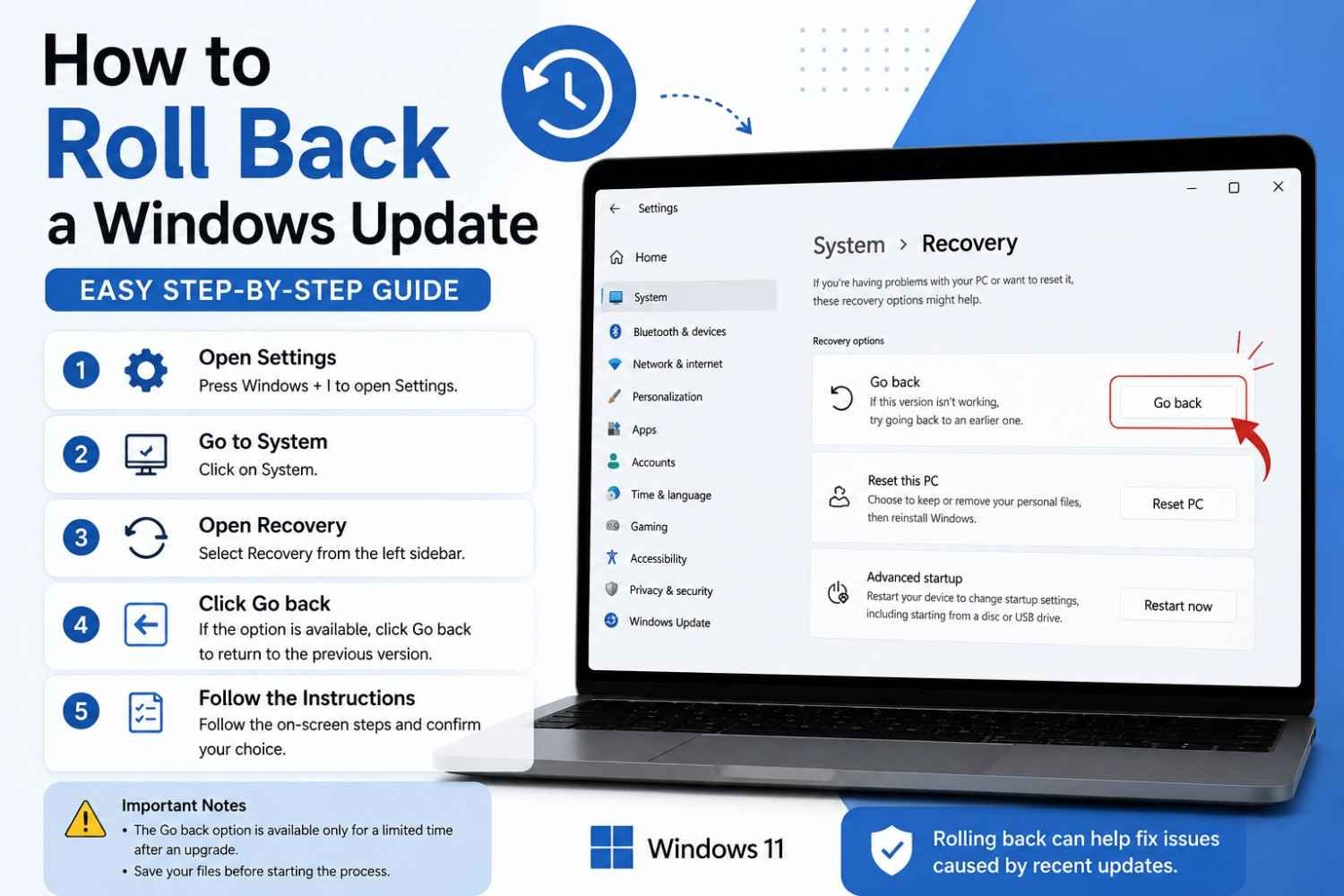
If a recently installed update is causing problems, you can try removing it through Windows Settings.
Step 1: Open Settings
Press Windows + I on your keyboard to open Windows Settings.
Step 2: Select Windows Update
Choose Windows Update from the Settings menu.
Step 3: Open Update History
Select Update history to view the updates that were recently installed on your computer.
Step 4: Choose Uninstall Updates
Look for the option to Uninstall updates. Windows will show updates that can be removed.
Step 5: Select the Update
Find the update you believe is causing the problem and select the uninstall option. Follow the instructions provided by Windows.
Step 6: Restart Your PC
After the update is removed, restart your computer if Windows asks you to do so. Then check whether the original problem has been resolved.
How to Roll Back a Major Windows Update
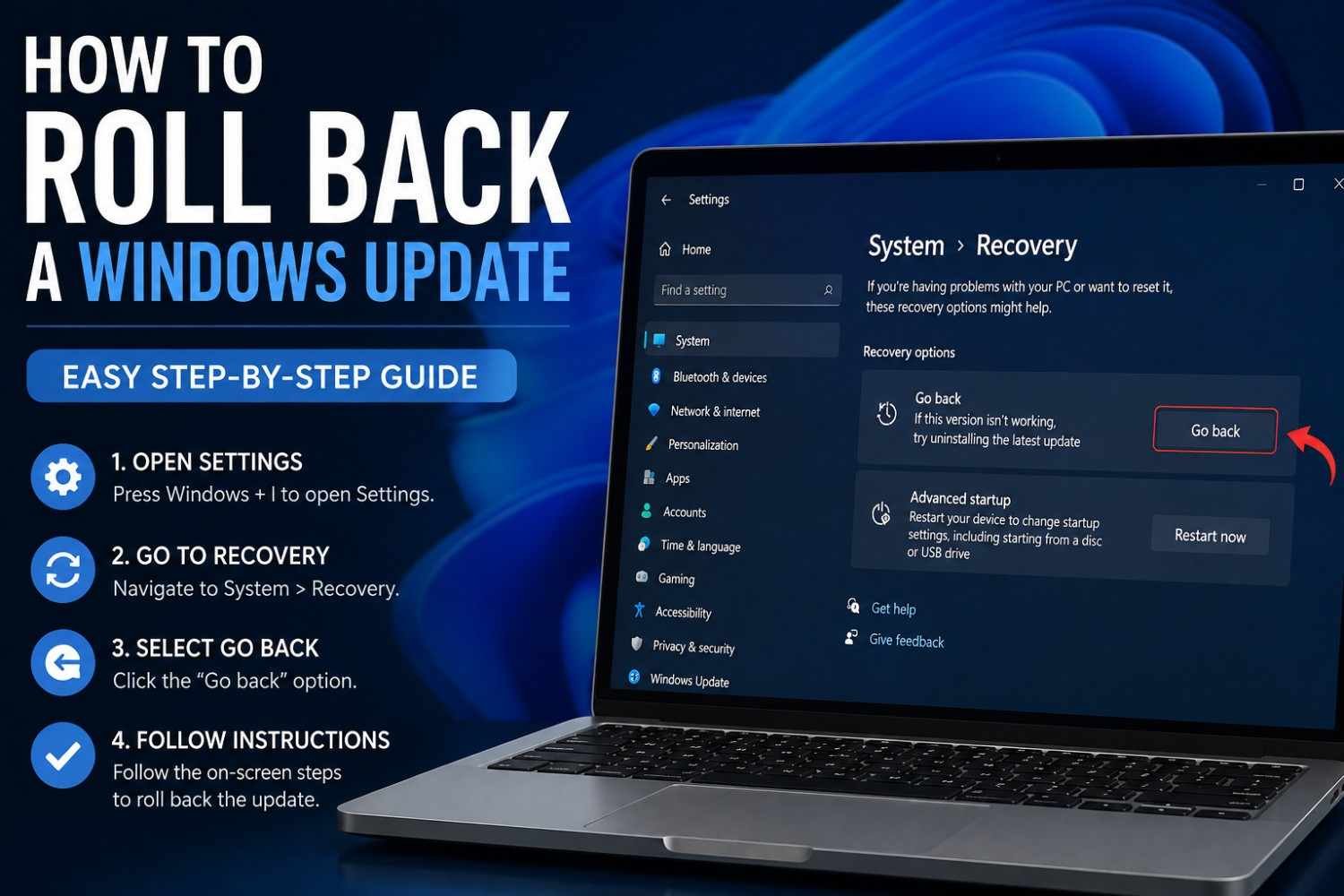
If you recently upgraded to a newer Windows version and want to return to the previous version, open Settings > System > Recovery.
If the feature is available, you may see a Go back option. Select it and follow the instructions on the screen. Windows may ask why you want to return to the previous version and may also suggest checking for updates before continuing.
The Go back option is not available forever. It may disappear after the recovery period or if the files required for returning to the previous version are no longer available.
What If the Rollback Option Is Missing?
Sometimes Windows does not provide a rollback option. This can happen when the recovery files have been removed, the available recovery period has passed, or changes have been made to the system.
If this happens, you can try other Windows recovery options. Depending on the problem, you may be able to uninstall a specific update, use System Restore, update a problematic driver, or troubleshoot the affected application.
Before using a major recovery option, identify the problem carefully. This can help you avoid making unnecessary changes to your system.
What to Do After Rolling Back
Once the update has been removed, restart your PC and test the features that were causing problems. Check your applications, internet connection, audio, hardware, and overall system performance.
If everything works normally again, the removed update may have been responsible for the issue. However, avoid leaving important security updates uninstalled permanently. Check whether Microsoft has released a newer update that fixes the original problem.
Final Thoughts
How to Roll Back a Windows Update can be useful when a recent update causes serious compatibility or performance problems. Before rolling back, back up your important files and identify which update may be responsible. Use Windows’ built-in recovery options whenever possible and check for a newer fix after resolving the issue.
Rolling back an update should generally be treated as a troubleshooting step, not a permanent solution. Keeping Windows updated with stable and security-tested releases is important for maintaining a secure and reliable PC.