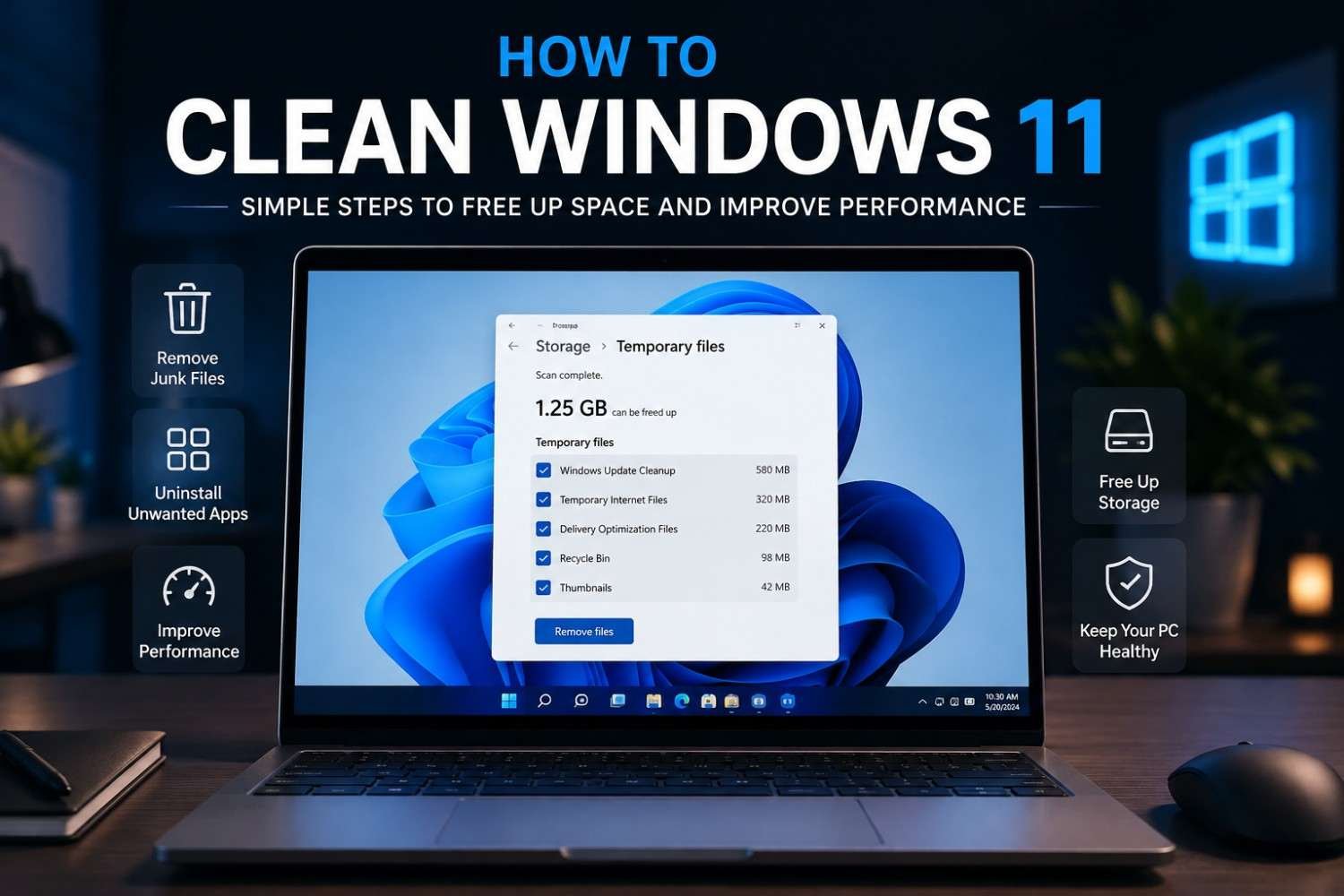
Windows 11 is designed to provide a smooth and modern experience, but over time, your PC can collect temporary files, unused applications, old downloads, and other unnecessary data. Cleaning your system regularly can help keep your storage organized and make your computer easier to manage.
If you are looking for simple ways to clean your Windows 11 PC, there are several methods you can use without installing complicated software. Windows 11 includes built-in tools that can help remove temporary files, uninstall unwanted apps, manage storage, and clean up unnecessary data.
Remove Temporary Files
Temporary files are created by Windows and different applications while you use your computer. Some of these files are useful for a short time, but many can remain on your PC after they are no longer needed.
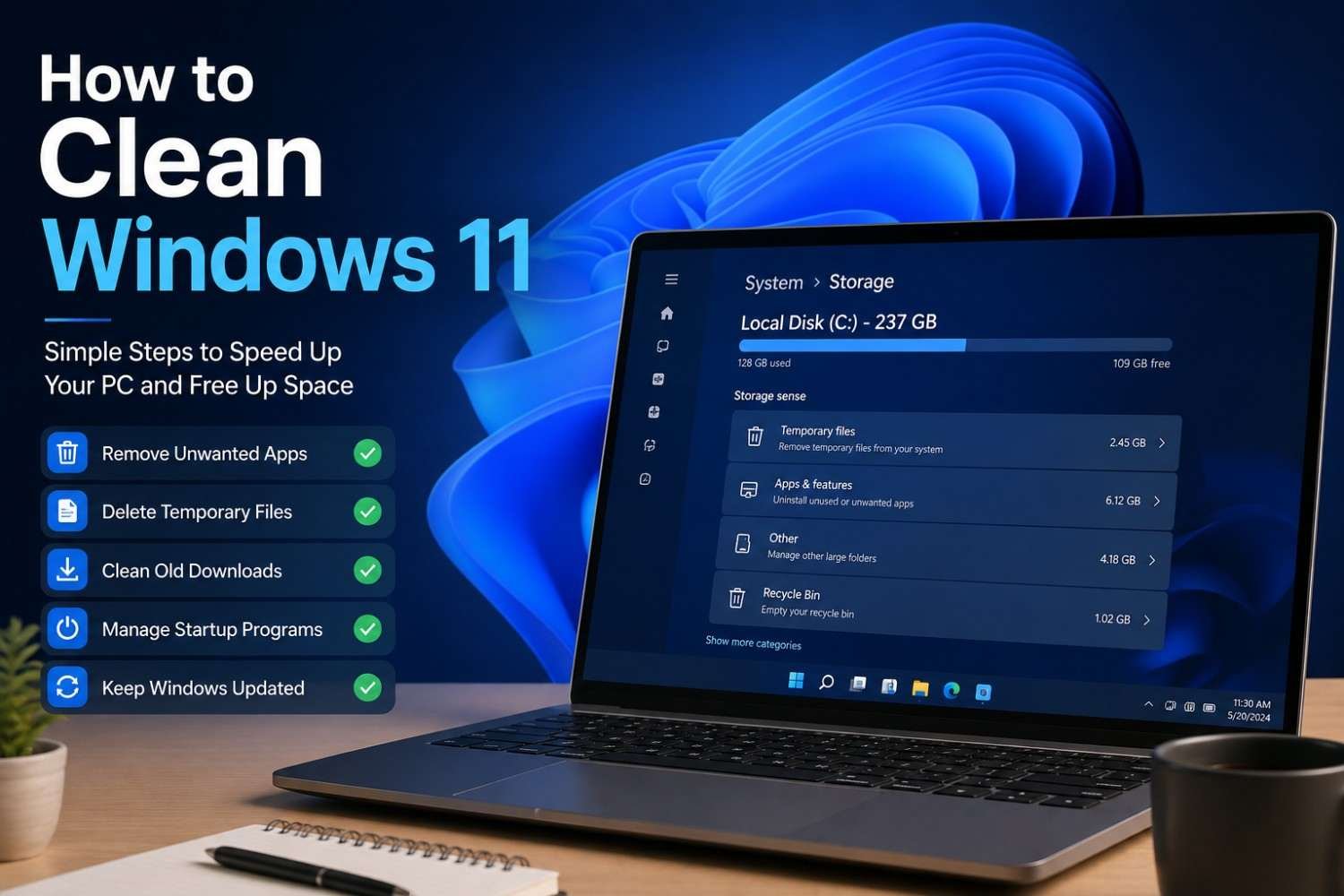
To remove them, open Settings > System > Storage > Temporary files. Windows will scan your system and show different types of temporary data. Review the list carefully and select the files you no longer need.
If you want to know How to clean Windows 11, removing temporary files is a simple place to start. Click Remove files to clean the selected data. Avoid selecting files you still need, especially items stored in your Downloads folder.
Clean the Recycle Bin
Deleted files are normally moved to the Recycle Bin instead of being removed immediately. These files can continue using storage space until the bin is emptied.
Right-click the Recycle Bin on your desktop and select Empty Recycle Bin. Before doing this, check that there are no important files you may want to restore later.
Uninstall Unused Apps
Applications that you no longer use can take up valuable storage space. Removing unnecessary programs is an easy way to keep Windows 11 organized.
Go to Settings > Apps > Installed apps and review the applications installed on your PC. Find programs you no longer need, select the three-dot menu, and choose Uninstall.
Only remove applications that you recognize and no longer need. Avoid uninstalling important Windows components or drivers.
.
Use Storage Sense
Windows 11 includes a feature called Storage Sense that can automatically manage unnecessary files.
Open Settings > System > Storage > Storage Sense and turn it on if you want Windows to help clean temporary files automatically. You can also configure when Windows should run Storage Sense and how it should handle files in certain locations.
This can be useful if you regularly run low on storage.
Clean Old Downloads
The Downloads folder can become crowded with installers, documents, images, videos, and other files that you may no longer need.
Open File Explorer and select Downloads. Sort the files by size or date to identify large or old items. Delete files you no longer need and empty the Recycle Bin afterward. When learning How to clean Windows 11, checking your Downloads folder can also help free up unnecessary storage space.
Before deleting anything, make sure important documents or personal files are backed up somewhere safe.
Remove Unnecessary Startup Apps
Some applications automatically start when you sign in to Windows. Too many startup applications can make the system feel slower during startup.
Open Settings > Apps > Startup and review the list. You can turn off automatic startup for applications that do not need to launch immediately.
This does not uninstall the application. It only prevents it from starting automatically with Windows.
Use Disk Cleanup
Windows also provides the classic Disk Cleanup utility. Search for Disk Cleanup from the Start menu and open it.
Choose the drive you want to clean, usually the Windows system drive. The tool will calculate how much space can potentially be recovered. Select suitable categories and click OK.
Disk Cleanup can be useful for removing certain temporary and system files that are no longer required.
Keep Windows Updated
Cleaning your PC is only one part of maintaining Windows 11. Keeping Windows updated can also help ensure that your system has the latest improvements and security fixes.
Go to Settings > Windows Update and check for available updates. If you are learning how to clean Windows 11, keeping your system updated is also an important part of regular PC maintenance. Install updates from Microsoft through Windows Update rather than using unknown third-party sources.
Final Thoughts
Regular maintenance can help keep your Windows 11 PC organized and free from unnecessary files. By removing temporary data, cleaning the Recycle Bin, uninstalling unused applications, reviewing downloads, and using built-in storage tools, you can manage your PC more effectively.
If you were searching for how to clean Windows 11, these simple built-in methods are a good place to start. Always review files before deleting them and avoid removing Windows components that you do not recognize.