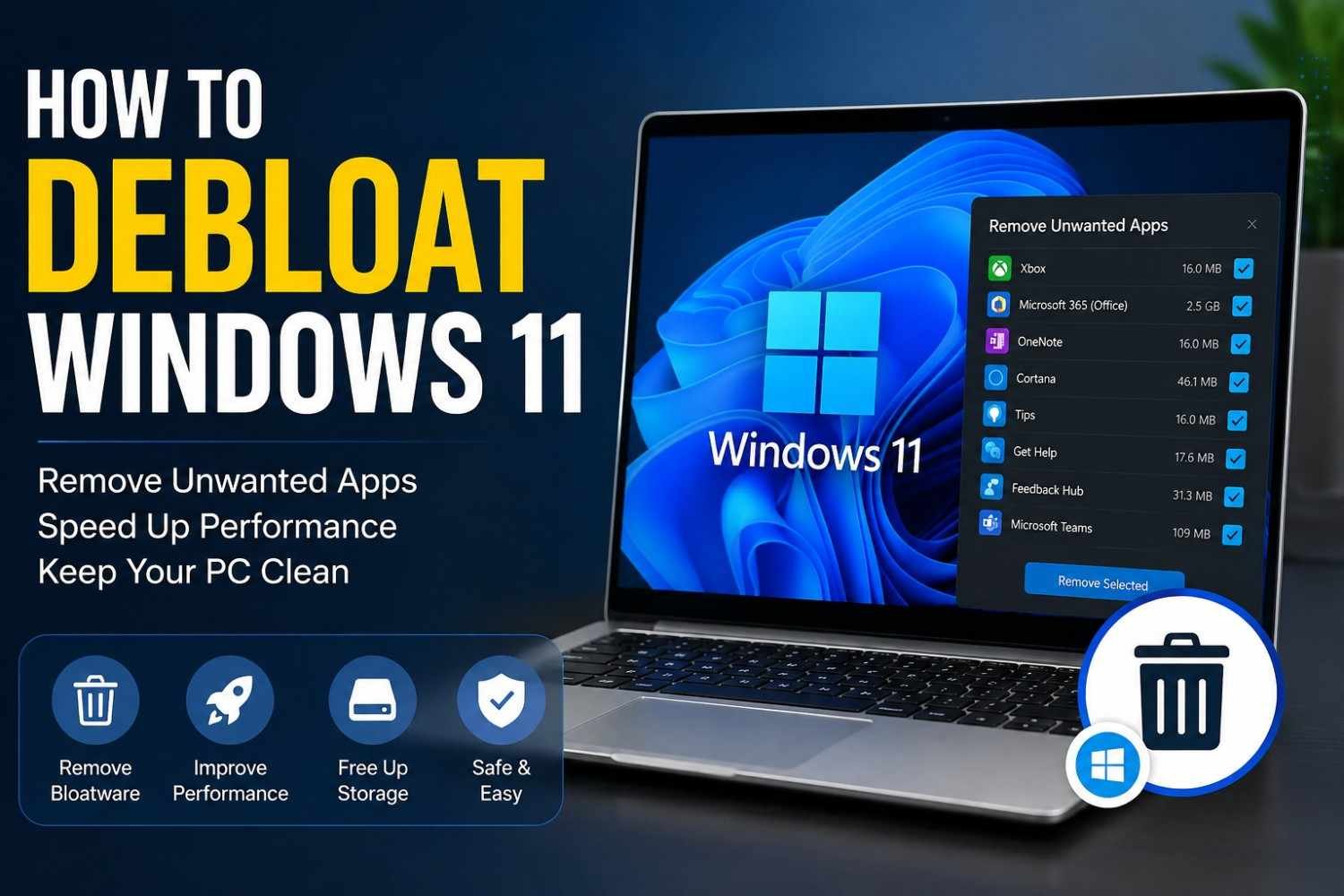
Windows 11 comes with many useful features, but it can also include apps and background processes that you may not need. Removing unnecessary software can help make your computer feel cleaner and easier to manage.
If your PC has too many unwanted apps, background processes, or unnecessary features, you can clean up your system by removing apps you do not use and changing a few Windows settings. The process can be done safely if you avoid removing important system components.
What Is Windows 11 Bloatware?
Bloatware refers to applications, services, and features that may come preinstalled with Windows or your computer. Some of these apps can be useful, while others may not be needed Bloatware refers to applications, services, and features that may come preinstalled with Windows or your computer. Some of these apps can be useful, while others may not be needed by every user.
If you are learning cracksofter understanding which applications are unnecessary is an important first step. Removing apps you do not use can help keep your system cleaner and more organized
Remove Apps You Do Not Use
The easiest way to start is by checking the applications installed on your computer.
Open Settings > Apps > Installed apps. You will see a list of applications installed on Windows 11.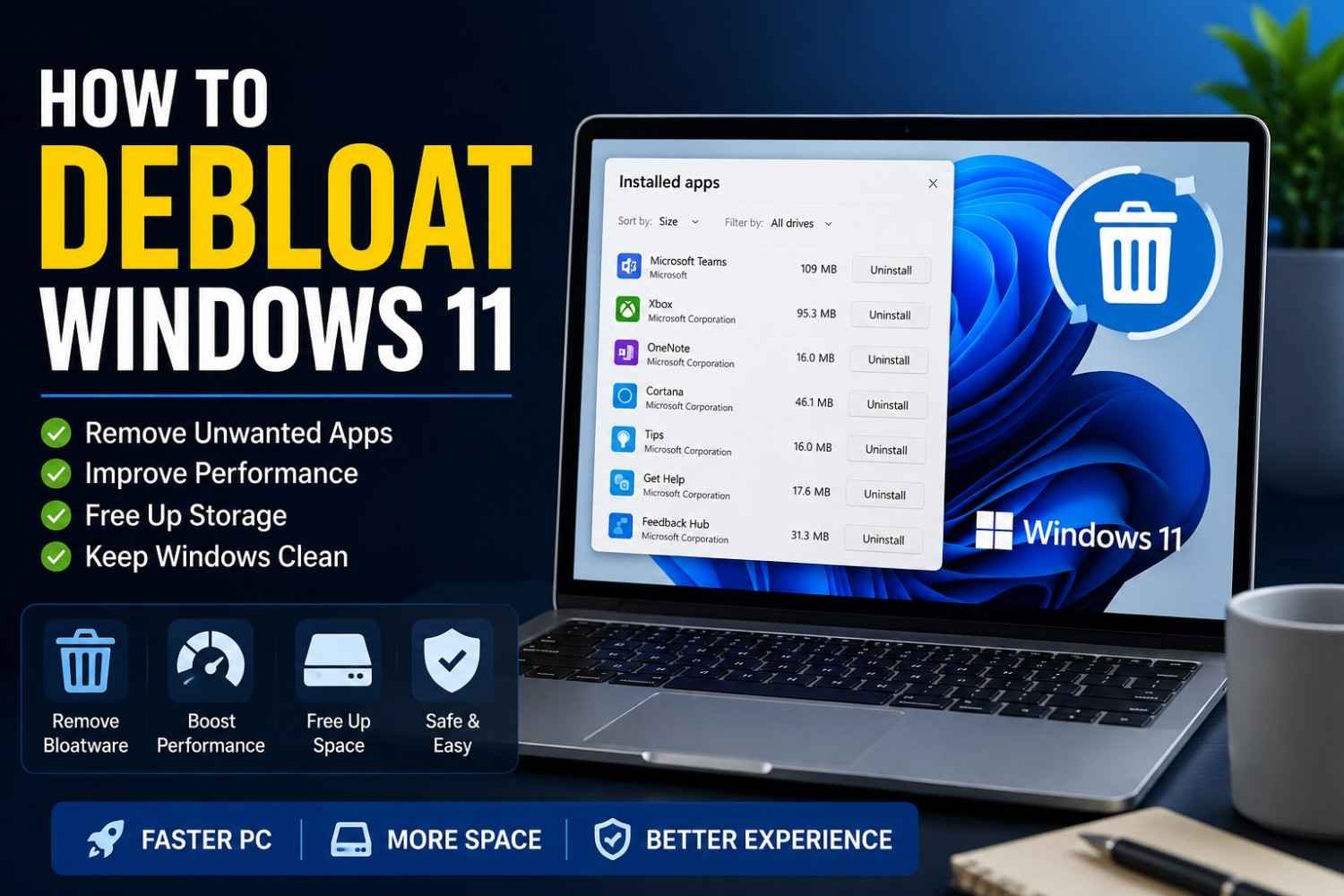
Look through the list and identify programs that you no longer use. Select the three-dot menu next to an app and choose Uninstall when the option is available.
Be careful not to remove applications that are required by Windows or hardware drivers.
Disable Unnecessary Startup Apps
Some applications automatically start when you turn on your PC. Too many startup applications can increase the time Windows takes to become ready.
Open Settings > Apps > Startup and review the applications listed there. You can turn off startup access for apps that do not need to launch automatically.
This is a simple way to reduce unnecessary background activity without uninstalling the applications completely.
Remove Optional Windows Features
Windows 11 includes several optional features that may not be useful for every user. You can review these features and decide whether you actually need them.
Go to Settings > System > Optional features. Check the installed features and remove ones that you are certain you do not need.
Before removing any feature, search for its purpose or check Microsoft’s documentation if you are unsure.
Use Windows Terminal Carefully
Advanced users can use Windows Terminal or PowerShell to manage certain Windows applications. However, this method requires more care than using the normal Settings application.
Do not run random commands from the internet without understanding what they do. Removing the wrong system component can cause problems with Windows features or installed applications.
For most beginners, How to Debloat Windows 11 can be safely done using the built-in Windows Settings options.
Clean Up Temporary Files
Removing unnecessary temporary files can also help keep your PC organized. How to Debloat Windows 11 also includes reviewing temporary data and removing files you no longer need.
Open Settings > System > Storage > Temporary files. Windows will show different types of temporary data that can potentially be removed.
Review the available categories carefully before deleting anything. If you are unsure about a particular category, leave it selected only after confirming what it contains.
Check Background Activity
Some applications continue running background processes even when you are not actively using them. Windows 11 provides settings that can help you control how certain apps operate.
Review the apps installed on your PC and look for applications that you rarely use. If an application is unnecessary, uninstalling it is usually better than keeping it installed.
For applications you still need, check their own settings for options related to background activity.
Create a Restore Point Before Advanced Changes
Before making advanced changes to Windows, creating a restore point is a good precaution.
A restore point can give you an option to return Windows to an earlier system state if a change causes an unexpected problem.
You can search for Create a restore point from the Windows search box and open the relevant system settings.
Is Debloating Windows 11 Safe?
Debloating can be safe when you only remove applications and features that you understand and do not need. The biggest risk comes from deleting important Windows components or using unknown third-party debloat scripts.
For beginners, start with simple methods such as uninstalling unused apps, managing startup programs, and cleaning temporary files.
If you are not sure what a Windows component does, it is better to leave it alone.