
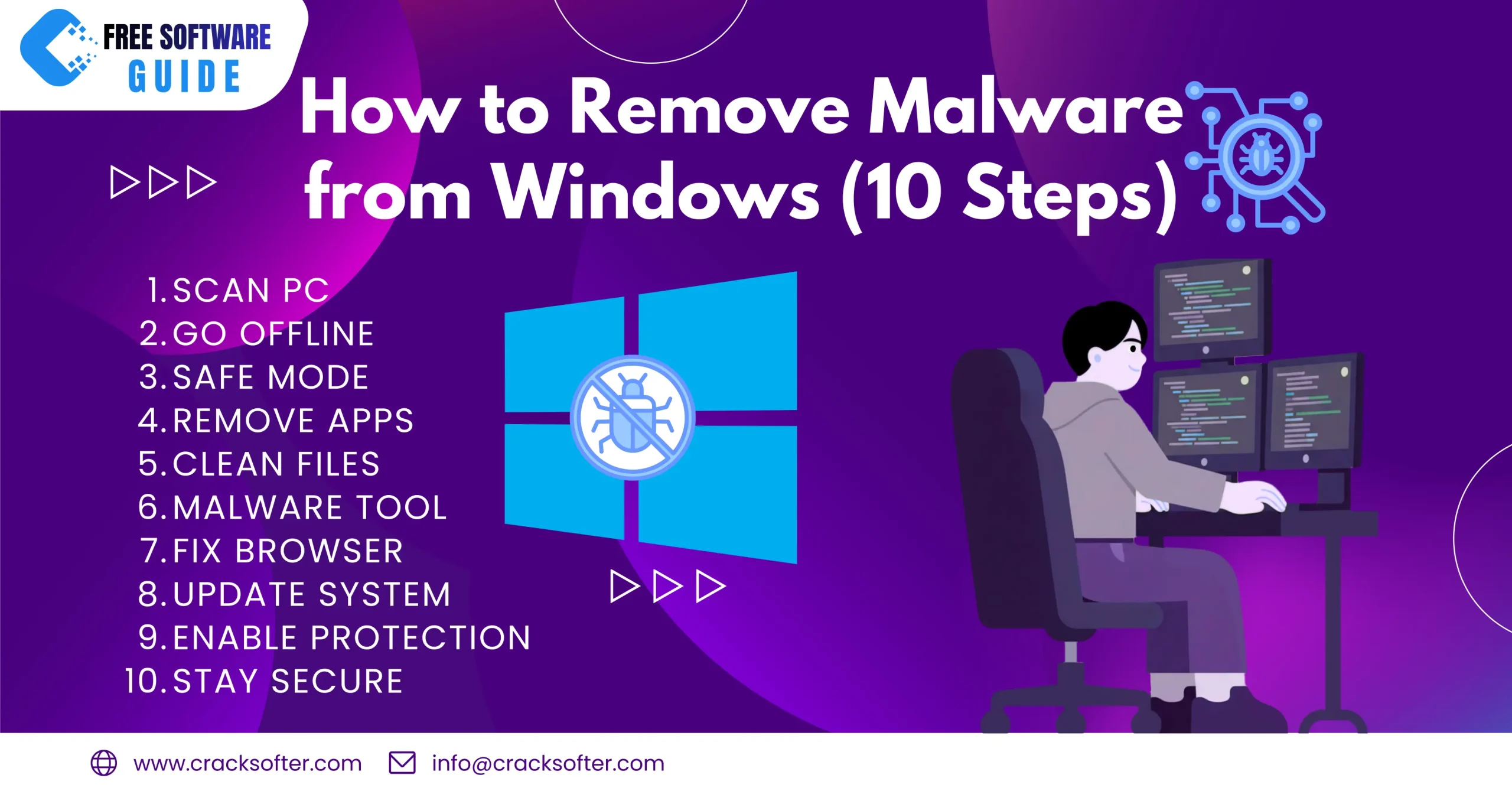
This guide will walk you through how to remove malware from Windows, step by step—no technical skills required. Malware can slow down your PC, steal personal data, display unwanted ads, or even give hackers control over your system. If your Windows computer is acting strange, malware could be the reason.
The good news? You can remove malware safely by following the right steps.
Signs Your Windows PC Is Infected with Malware
Before fixing the problem, confirm the symptoms:
- PC is running very slow
- Pop-up ads appear frequently
- Browser homepage changes automatically
- Unknown programs installed
- Antivirus is disabled
- High CPU or disk usage
- Redirects to suspicious websites
If you notice any of these, act immediately.
Step 1: Disconnect from the Internet
First, disconnect your PC from the internet.
Why?
- Stops malware from sending your data
- Prevents further downloads
- Blocks remote access
Turn off Wi-Fi or unplug the Ethernet cable.
Step 2: Boot Windows into Safe Mode
Safe Mode loads Windows with minimal services, making malware easier to remove.
How to Enter Safe Mode (Windows 10/11):
- Press Windows + R
- Type msconfig → Enter
- Go to Boot tab
- Check Safe boot → Minimal
- Click Apply → OK
- Restart your PC
Step 3: Uninstall Suspicious Programs
Remove unknown or recently installed software.
- Open Control Panel
- Go to Programs → Programs and Features
- Sort by Installed On
- Uninstall anything suspicious or unfamiliar
⚠️ Be careful—don’t remove system programs.
Step 4: Run Windows Security (Microsoft Defender)
Windows Defender is powerful and free.
- Open Windows Security
- Click Virus & threat protection
- Select Scan options
- Choose Full scan
- Click Scan now
This may take some time, but it’s essential.
Step 5: Use a Trusted Malware Removal Tool
For deeper threats, use a dedicated anti-malware tool.
Recommended Free Tools:
- Malwarebytes (Free)
- Emsisoft Emergency Kit
- Kaspersky Virus Removal Tool
- Microsoft Safety Scanner
Download only from official websites.
Run a full system scan and remove all detected threats.
Step 6: Remove Malware from Browser
Malware often hides in browsers.
Google Chrome:
- Settings → Extensions
- Remove unknown extensions
- Settings → Reset settings → Restore defaults
Microsoft Edge / Firefox:
- Remove suspicious add-ons
- Reset browser settings
Also clear cache and cookies.
Step 7: Delete Temporary Files
Temporary files may contain malware scripts.
- Press Windows + R
- Type %temp%
- Delete all files
- Empty Recycle Bin
Step 8: Check Startup Programs
Stop malware from starting automatically.
- Press Ctrl + Shift + Esc
- Go to Startup tab
- Disable unknown programs
Restart your PC.
Step 9: Update Windows and Software
Outdated systems are easy targets.
- Go to Settings → Windows Update
- Install all updates
- Update browsers and software
Step 10: Turn Real-Time Protection Back On
Make sure your antivirus is enabled:
- Windows Security → Virus & threat protection
- Turn on Real-time protection
Do you want to Multimedia software tools?
How to Prevent Malware in the Future
Follow these best practices:
- Avoid cracked or pirated software
- Don’t click suspicious links or emails
- Use a trusted antivirus
- Keep Windows updated
- Download software from official sources only
Final Thoughts
Removing malware from Windows is not difficult if you follow the correct steps. Acting quickly can save your data, privacy, and system performance. If malware keeps coming back, a fresh Windows reinstall may be required—but in most cases, the steps above are enough.
For more information, visit our About page and Contact page. Read our Privacy Policy and Terms for more details.
