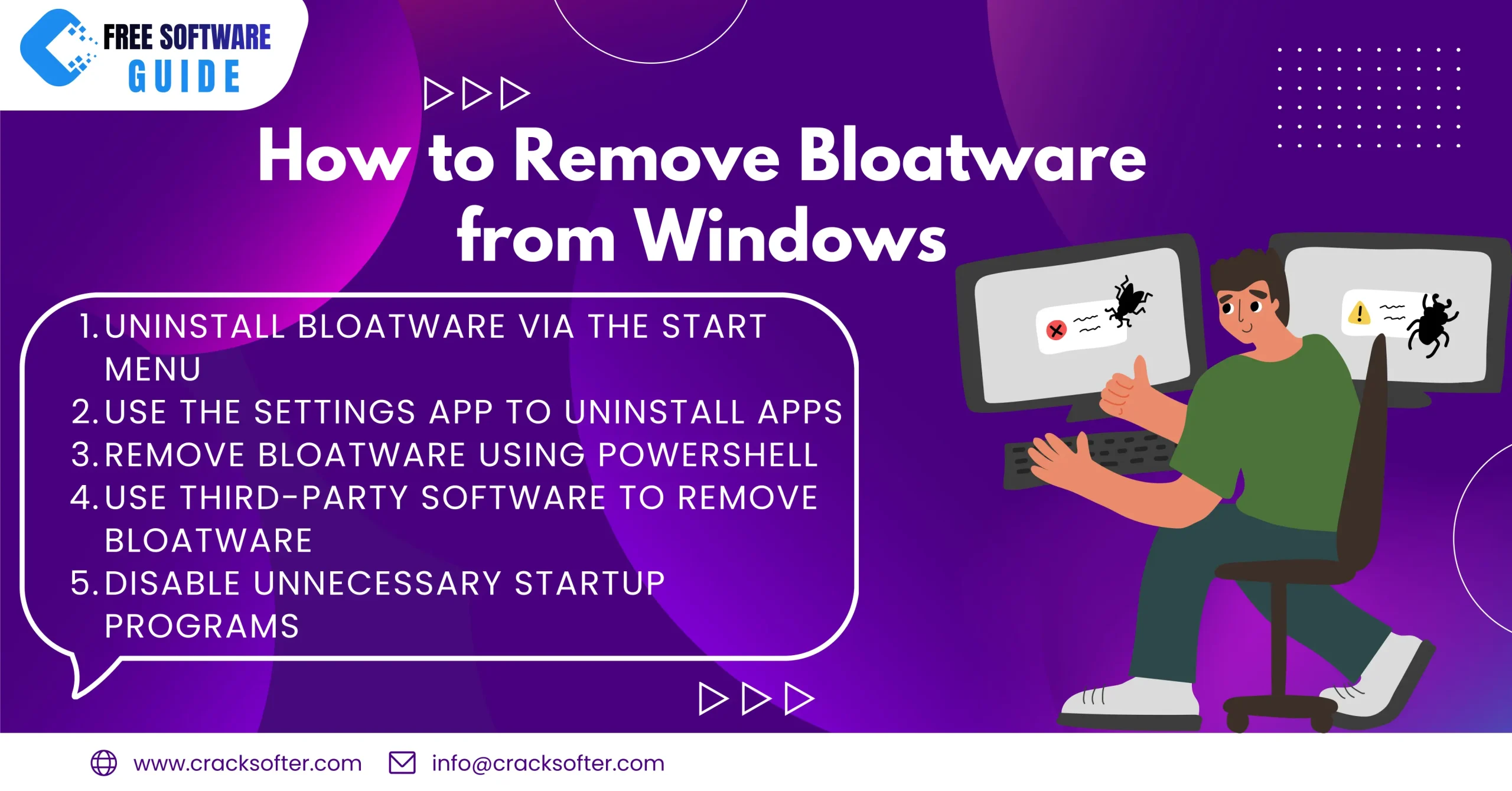
How to Remove Bloatware from Windows if you’ve recently bought a new Windows PC, you may have noticed that it comes preloaded with several unnecessary programs, also known as bloatware. These are typically trial versions of software, promotional apps, and other programs that take up valuable storage space and slow down your computer’s performance.
In this comprehensive guide, we’ll show you how to safely and effectively remove bloatware from Windows, improve your system’s speed, and optimize its performance.Whether you’re using Windows 10 or Windows 11, this guide will walk you through the entire process. Let’s get started and clean up your PC!
What is Bloatware?
Bloatware refers to software or apps that come pre-installed on your computer by the manufacturer or third-party developers. These programs are often unnecessary and can be a nuisance to users, as they consume system resources such as CPU, memory, and storage, leading to slower performance.
Common examples of bloatware include:
-
Trial versions of software (e.g., antivirus, productivity apps)
-
Manufacturer-specific utilities (e.g., system optimization tools)
-
Unwanted apps (e.g., games, news apps, etc.)
Why Should You Remove Bloatware?
There are several reasons why it’s essential to remove bloatware from your Windows PC:
-
Improved Performance: Bloatware can consume valuable system resources, slowing down your computer. By removing unnecessary apps, you can free up storage space and boost system speed.
-
Enhanced Battery Life: Some pre-installed programs run in the background and use up CPU power, leading to faster battery drain. Removing these apps can help extend battery life.
-
Increased Storage Space: Bloatware takes up storage space on your hard drive or SSD. By removing these apps, you can free up gigabytes of space that could be used for more important files and programs.
-
Better Security: Some bloatware includes outdated or insecure software that could be a target for hackers. Removing these programs can reduce your risk of security vulnerabilities.
How to Identify Bloatware on Your Windows PC?
Before we dive into the removal process, it’s important to identify the bloatware on your system. Here are some common signs that indicate a program might be bloatware:
-
Unwanted Pop-ups or Notifications: Programs that constantly ask you to upgrade or buy a full version are often considered bloatware.
- High System Resource Usage: If you notice that your PC is running slowly, it could be due to background apps consuming excessive CPU or memory.
